Boxing Battle Evolution Controls Guide
PC and mobile inputs for Power, training, stages, shops, and reward menus.
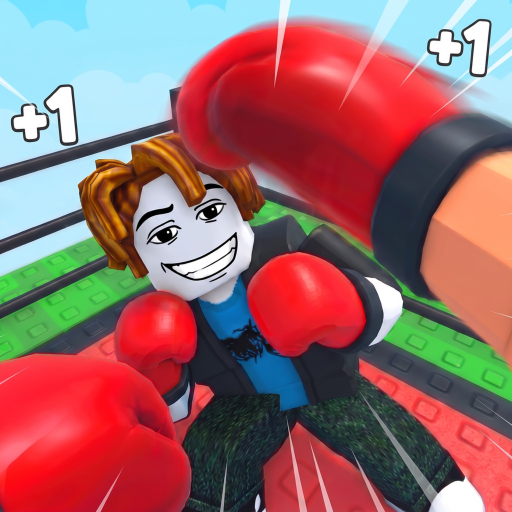
Comfortable controls decide whether Boxing Battle Evolution feels like a fun incremental climb or a hand-cramping chore. This guide covers practical PC and mobile setups for clicking Power, moving between bags and pads, entering stages, opening shops, and claiming rewards — without inventing keybinds the game does not show.
Pair this page with Getting Started and How to Train. Roblox’s own movement defaults still apply underneath the experience UI.
Universal actions
Regardless of device, you will repeatedly:
- Generate Power via the click / tap Power control.
- Move to punching bags, pads, stages, and shops.
- Enter stage battles and follow on-screen fight prompts.
- Open menus for gloves, Rebirth, Ascend (Body Evolution), Prestige, rewards, and settings.
- Claim Daily, PlayTime (1–8), Offline, Group, and Leave rewards when icons appear.
If a button is missing, rotate the camera, check the sidebar or top bar, and ensure tutorials are finished. UI layout can shift with patches — see Updates.
PC controls
Movement: Use Roblox defaults — typically WASD to walk, Space to jump, Shift to sprint if enabled by the place. Mouse look or right-stick style camera drag helps line up with bags.
Power clicking: Left-click the Power button or clickable fight HUD element. For long sessions, position the window so the click target sits under a comfortable finger or consider a light touch-sensitive mouse. Do not use hardware macros that violate Roblox Terms of Use; keep inputs human.
Menus: Click HUD icons for shop (Boxing Gloves), rewards, Rebirth / Ascend / Prestige panels, and settings. Esc often frees the mouse for UI in Roblox experiences.
Stages: Walk into stage portals or click stage markers, then use on-screen confirmations. During fights, follow prompted click / ability cues rather than inventing combos from other boxing games.
Camera: Zoom out enough to see bag labels (normal vs x2). Zooming too far makes menu icons tiny; too close hides the next trainer.
Mobile controls
Movement: Virtual joystick on the left (Roblox standard). Practice strafing into bag radius without overshooting.
Power taps: Tap the Power control rhythmically. Some players prefer thumb-tap; others use a free finger while the left thumb steers. Avoid opaque screen protectors that kill responsiveness.
Auto-rotate and sleep: Disable aggressive screen sleep during PlayTime grinds, but lower brightness to save battery. Landscape mode usually gives better HUD spacing for shops and rewards.
UI taps: Reward bells and shop buttons can be small — zoom accessibility settings in your device OS if needed. Claim PlayTime tiers carefully so you do not mis-tap into a purchase prompt.
Stages on touch: Confirm entry with deliberate taps. During battles, keep thumbs clear of accidental joystick drift that walks you out of fight zones if the place allows movement mid-fight.
Training stance tips
Efficient training is half route knowledge, half input comfort:
- Park inside the x2 bag or pad radius whenever possible (How to Train).
- Keep Power inputs going while stationed.
- Face the camera so you can see both the trainer and the nearest stage or shop path.
- After buying gloves, confirm they are equipped before the next fight — a common mis-tap is buying without equipping.
Menus you must open regularly
| Menu | Why |
|---|---|
| Gloves shop | Spend Wins; equip upgrades |
| Rewards | Daily, PlayTime, Offline, Group, Leave |
| Rebirth | First prestige-style reset (guide) |
| Ascend / Body Evolution | Mid-game evolution (guide) |
| Prestige | Late reset toward World 2 (guide) |
| World / Tower | Post-Prestige content (World 2) |
Learn where each icon lives on your device so you are not hunting mid-combo during a limited-time reward pulse.
Accessibility and comfort
- Take breaks aligned with PlayTime claims instead of sudden quits.
- Stretch wrists during Rebirth rebuilds; incremental games reward long sessions but not injuries.
- On shared PCs, check mouse DPI — ultra-high DPI makes precise bag standing harder.
- On mobile, use a stand or case that props the device so both thumbs stay free.
- Volume: listen for reward or fight cues if you play tabbed out carefully; never ignore Roblox moderation toasts.
What controls do not do
This guide will not list unverified keybinds from other Roblox boxers or promise auto-clicker setups. Third-party clickers and injectors can violate Roblox rules and risk your account — see community tooling notes on Scripts and decide responsibly. Fair manual inputs are enough to finish Rebirth, Ascend, Prestige, and World 2.
Practice routine (10 minutes)
- Move from spawn to an x2 trainer without sprinting past it.
- Generate Power for one minute while staying in radius.
- Open rewards and claim anything available.
- Open the gloves shop and equip your best pair.
- Enter a comfortable stage, finish or retreat cleanly, return to the bag.
When that routine is automatic, controls stop being the bottleneck — progression systems do. Continue with Getting Started if you are new, or How to Rebirth when the first wall hits.
Related pages
- Guides Hub — all walkthroughs.
- How to Train — why x2 positioning matters.
- Unlock World 2 — longer sessions, same inputs.
- Codes — redemption UI only when verified codes exist.
- Players — competitive goals once controls feel invisible.
Master movement and Power input early. Every later guide assumes you can stand on a bag, click without pain, and open the right menu on the first try.
Frequently Asked Questions
Quick answers to the most common questions.
What are the default PC movement keys?
Roblox defaults usually use WASD to move, Space to jump, and mouse look. The Power action is a clickable HUD control in Boxing Battle Evolution.
How do I train on mobile without missing the bag?
Use the left joystick to stay inside the bag/pad radius, prefer x2 trainers, and keep tapping Power with another finger while watching the label.
Where do I open Rebirth or Ascend?
Use the on-screen progression menus in the HUD. Exact icon art can change with patches — check Updates if a button moved.
Are auto-clickers allowed?
Third-party automation can violate Roblox Terms of Use and risk bans. This wiki recommends manual inputs and does not provide auto-clicker setups.
Why can’t I find the rewards button?
Look along the side or top HUD after the tutorial. Rotate the camera and ensure Daily / PlayTime / Offline icons are not hidden behind other panels.